Digital Wallet
Secure, contactless payments.


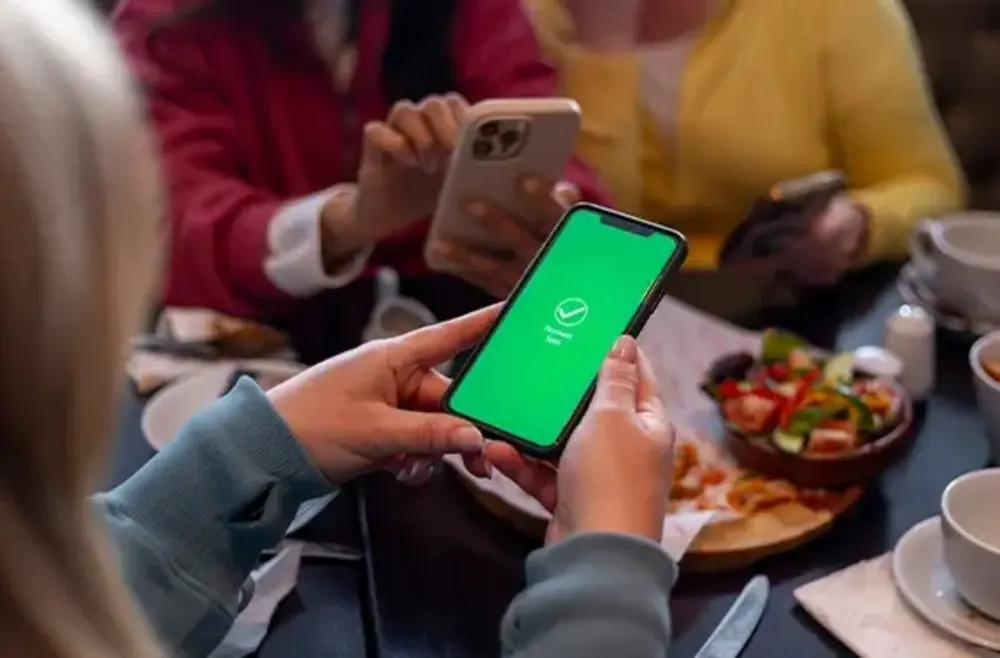
How to get started:
Everyone wants to ensure their financial data is safe and secure. With your phone's Digital Wallet, you can tap to pay wherever you see the contactless symbol. Your identifying information (your name, security code, or MECU account number) is not transmitted to the merchant when you tap to pay. Getting started is easy as 1,2,3!
You'll need a supported iPhone or iPad to add your MECU Credit Union credit or debit card to Apple Pay. Open the Wallet® app, swipe down, and tap the plus sign. Use your camera to enter the card number or add it manually.
Download the Google Pay App from the Google Play Store to add your MECU credit or debit card to Google Pay. Snap a picture or enter your card credentials. If your MECU card is already linked to your Google Account, you can add it to the Google Pay App by confirming a few details.
To add your MECU credit or debit card to Samsung Pay, download through Samsung Galaxy App Store or Google Play Store. Snap a picture or enter your card credentials.
How to use Apple, Google, or Samsung Pay in participating stores.
- Look for the Pay Wave
 or Apple, Google, or Samsung Pay symbol at checkout and hold your phone near the contactless reader.
 - Place your finger on the TouchID or use FACE ID. You can also enter a passcode.
- Keep your phone by the reader until it vibrates and beeps, indicating your payment was accepted.
Visa's "Tap to Add Card" Service